KlipperScreen-esp
KlipperScreen-esp is a compact, cross-platform display and controller for 3D printers. It runs on inexpensive ESP32 boards and Windows/macOS desktops, provides full Klipper control through Moonraker, and adds read-only Bambu Cloud monitoring on ESP32 and desktop. Its shared LVGL UI supports touch, rotary encoder, mouse, keyboard, or mixed input; the EC11 reference target demonstrates a rotary-only device.
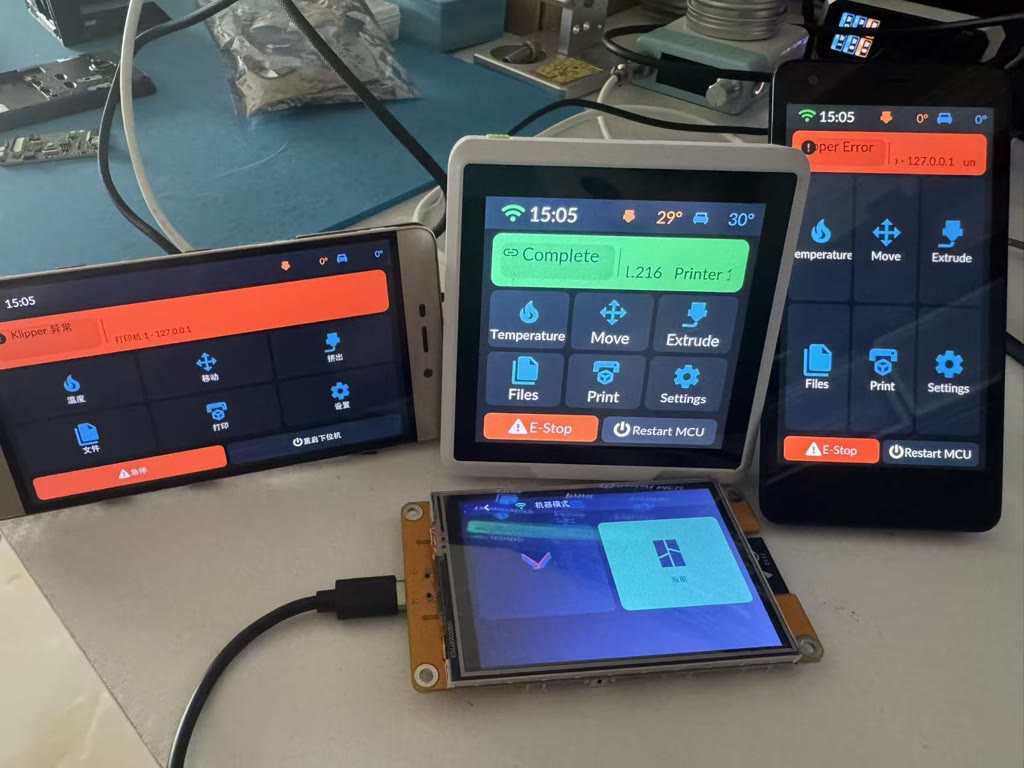
The separately named SDL2 simulator uses mock data for layout development, input experiments, and screenshot testing without a printer.
Features
- Main — nozzle/bed/chamber temp cards, print progress, quick actions
- G-code files — thumbnails, metadata, history, print/delete
- Control — axis jog & homing, extrude/retract with cold-extrusion guard, temperature presets (PLA/PETG/ABS/cooldown), emergency stop & firmware restart with confirmation
- Print fine tuning — open from the upper-right corner of Job Status while printing or paused. Z uses separate 0.01/0.05mm steps; speed and flow share 1%/5%/10%/25% steps. Tap a value to restore 0mm/100%. Not enabled on Wio Terminal due to executable flash limits.
- Manual bed leveling — the
bed_levelmenu reads 3/4 screw positions from[bed_screws]or[screws_tilt_adjust], moves safely to a selected screw and shows probe-assisted screw adjustments. Missing configuration displays a setup hint; motion is disabled while printing or paused. Not enabled on Wio Terminal due to executable flash limits. - Robust link — WebSocket auto-reconnect, app-level heartbeat with RTT display, zombie-connection detection, Klipper error toasts (e.g. endstop not triggered)
- Bambu status monitor — ESP32 and desktop support sign-in, verification codes, bound-device selection, and cloud MQTT status sync. Cloud mode is read-only; LAN Developer Mode controls are reserved for a later backend.
- Extras — "Umeko" boot animation, 5 languages (EN / 简中 / 繁中 / FR / IT, fade-to-black reboot on switch), brightness slider, auto screen-off with touch wake, and a title-bar clock synced from the active backend's standard HTTP time
- Input paths — no-touch rotary boards need no touch layer; resistive touch uses a board-specific calibration path; capacitive touch normally reports screen coordinates directly. Touch and rotary can coexist.
Supported boards
| Board | Display | Touch | MCU | Status |
|---|---|---|---|---|
| CYD 2432S028R | 2.8" 320×240 ILI9341 SPI | XPT2046 resistive | ESP32 | ✅ Stable |
| CYD 2432S028R-PLUS | 2.8" 320×240 ST7789 SPI | XPT2046 resistive | ESP32-WROOM-32E | 🆕 New, CYD pinout |
| E32R35T (ESP32-32E 3.5") | 3.5" 480×320 ST7796 SPI | XPT2046 resistive (shared bus) | ESP32-32E | ✅ Stable |
| esp32s3-st7789-320_240-ec11 | 240×320 ST7789 SPI | None, rotary only | ESP32-S3 N16R8 | ✅ Official reference, contributor tested |
| esp32-st7735s-128_160-ec11 | 1.8" 128×160 ST7735S SPI | None, rotary only | ESP32 | 🆕 New, CYD-compatible pinout |
| esp32-st7789-320_240-ec11 | 240×320 ST7789 SPI | None, rotary only | ESP32 | 🆕 New, CYD-compatible pinout |
| esp32-ILI9341-320_240-ec11 | 240×320 ILI9341 SPI | None, rotary only | ESP32 | 🆕 New, CYD-compatible pinout |
| esp32-ST7796-320_240-ec11 | 240×320 ST7796 SPI | None, rotary only | ESP32 | 🆕 New, CYD-compatible pinout |
| esp32s3-st7796-480_320-xpt2046-ec11 | 480×320 ST7796S SPI | XPT2046 resistive (shared bus) + EC11 | ESP32-S3 N16R8 | 🆕 New |
| esp32s3-ILI9488-480_320-xpt2046-ec11 | 3.5" 480×320 ILI9488 SPI | XPT2046 resistive (shared bus) + EC11 | ESP32-S3 N16R8 | 🆕 New, MKS PI-TS35 |
| esp32s3-ILI9341-320_240-xpt2046-ec11 | 320×240 ILI9341 SPI | XPT2046 resistive (shared bus) + EC11 | ESP32-S3 N16R8 | 🆕 New |
| JC8048W550 | 5" 800×480 ST7262 RGB parallel | GT911 capacitive | ESP32-S3 | ✅ Stable |
| esp32c3-st7789-320_240-ec11 | 240×320 ST7789 SPI | None, rotary only | ESP32-C3 | 🆕 New, LuatOS CORE & Super Mini |
Full pinouts and hardware details: Supported boards.
Quick start
- Download the zip for your board from Releases, unzip, then
flash.bat COMx(Windows) or./flash.sh /dev/ttyUSB0 - Settings → WiFi: scan → pick AP → enter password
- Settings → Printer Connection: pick a printer slot and choose Klipper or Bambu mode; for Klipper, enter the host IP + port (default 7125), while Bambu continues to its LAN or cloud settings
For self-compiling see the repo README; to run the firmware on your own board see the porting guide. Start its input section by choosing the no-touch or touch route, then choose resistive or capacitive touch where applicable.
Touch calibration (resistive-touch boards)
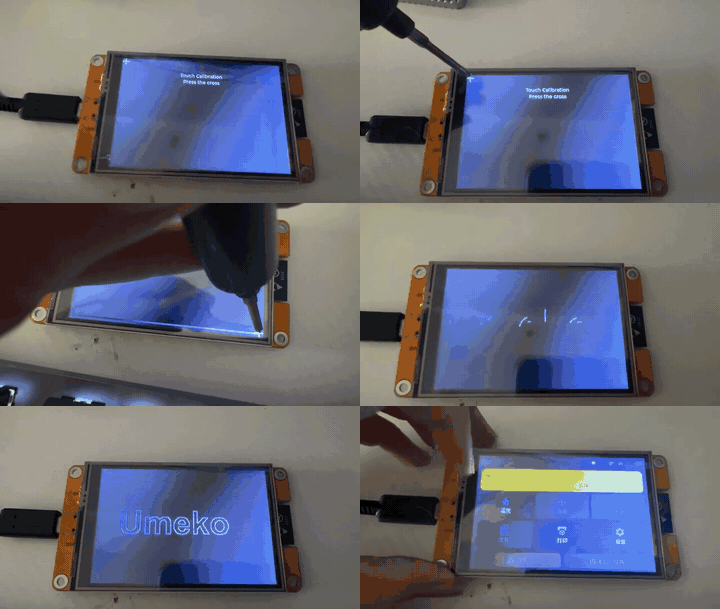
Resistive-touch boards (XPT2046: CYD 2432S028R / 2432S028R-PLUS, E32R35T, and the ESP32-S3 480×320 XPT2046 variants) support two-point calibration. A board without calibration data enters the calibration screen automatically on first boot; boards whose firmware ships default parameters can be re-calibrated anytime if taps feel off:
- While flashing: the release package scripts (
flash.bat/flash.sh) ask at the end whether to calibrate — answeryand the board is sent into the calibration screen over serial automatically. The developer pathtools/build-esp32.sh <board> flash COMxasks the same question. - Anytime: connect a serial terminal at 115200 8N1 and send
caltouch; the device reboots straight into the calibration screen.
Tap the two crosses precisely; the result is saved to flash and loaded on every boot.
Documentation map
- Supported boards — hardware info and pinouts of existing boards
- Porting to your own board — the BSP contract and implementation notes
- Screenshots — current English desktop simulator screens
- Architecture — shared UI, BSP, desktop controller, and simulator structure
- Bambu integration notes — current read-only cloud boundary and planned LAN path
License
MIT. Repository: github.com/umeiko/KlipperScreen-esp