Seeed Wio Terminal
KlipperScreen-esp supports the Wio Terminal's ATSAMD51 + RTL8720DN architecture. The display is not touch-enabled: use the five-way switch for navigation, press the switch to confirm, and use the top C button to go back.
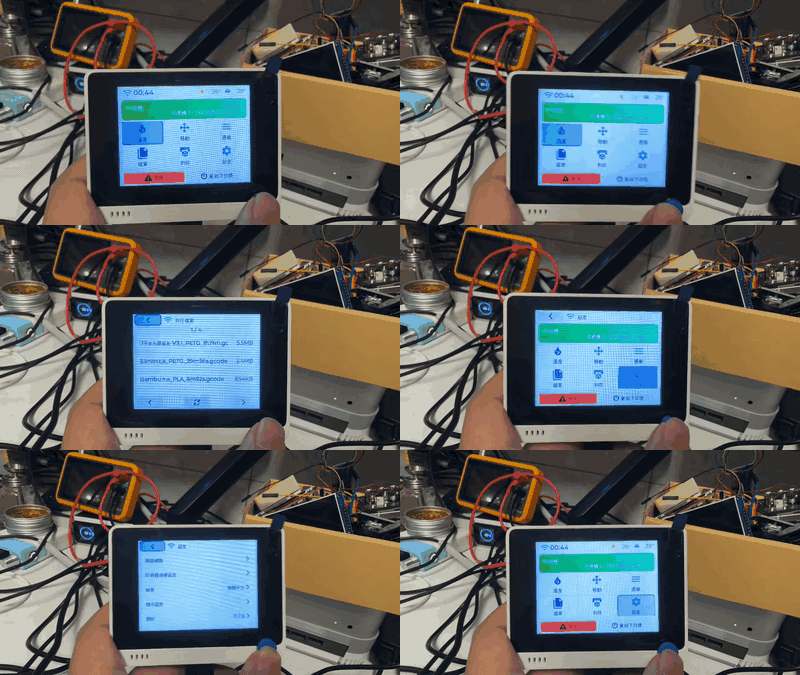
Download and flash
Download the latest KlipperScreen-esp-Wio-Terminal.uf2, then:
- Connect and power on the Wio Terminal with a data-capable USB-C cable.
- Slide the power/reset switch twice very quickly. The blue LED starts breathing and a removable drive, usually named
Arduino, appears. - Copy the downloaded
.uf2file to that drive. The drive disappears automatically and the device reboots into KlipperScreen-esp.
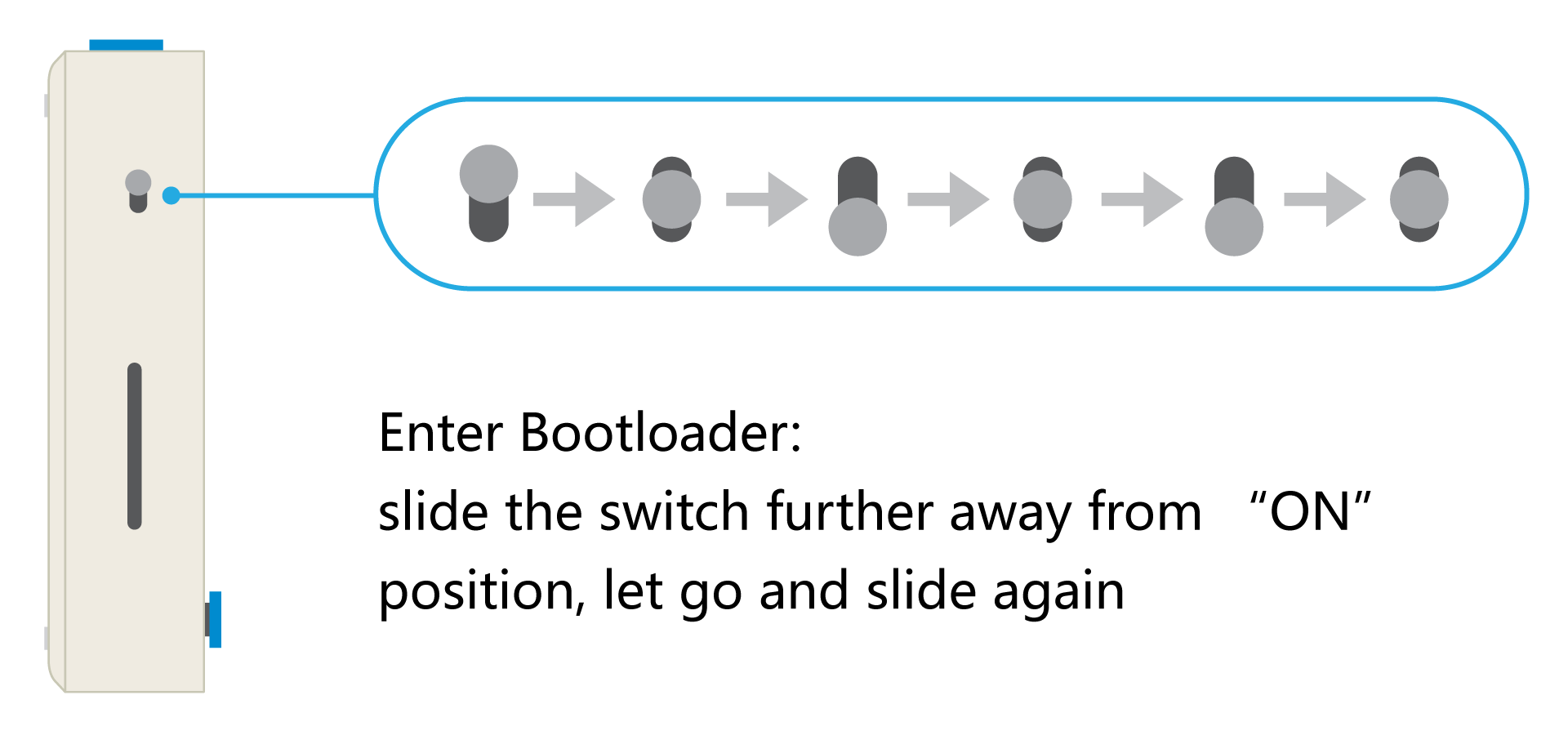
Bootloader illustration from Seeed Studio's Get Started with Wio Terminal.
Tip
If the LED breathes but file copying stalls, unplug the board completely and try a direct motherboard USB port or another computer. The Chinese page contains the tested Windows USB-device-tree recovery procedure.
Update the Wi-Fi coprocessor firmware
Wi-Fi is provided by a separate RTL8720DN coprocessor. Update it to Seeed's eRPC firmware before first use. Reflash it later only if scanning always fails, SSIDs are blank, or connecting waits indefinitely.
- Download or clone Seeed ambd_flash_tool. Close Arduino IDE, serial monitors, and anything else using the Wio serial port.
- Connect the Wio in normal application mode. For a board still carrying the original factory firmware, erase it once:
.\ambd_flash_tool.exe erase
- Flash the current wireless firmware:
.\ambd_flash_tool.exe flash
On Linux or macOS, use python3 ambd_flash_tool.py erase and python3 ambd_flash_tool.py flash instead.
4. Power-cycle the board, then flash KlipperScreen-esp using the UF2 steps above. The RTL8720DN firmware and the SAMD51 application are independent images.
See Seeed's Wio Terminal Network Overview for the full official procedure.
Build from source
Install PlatformIO, then run from the repository root:
platformio run -d src/ports/wio_terminal -e wio-terminal
python tools/make_uf2.py \
  src/ports/wio_terminal/.pio/build/wio-terminal/firmware.bin \
  src/ports/wio_terminal/.pio/build/wio-terminal/firmware.uf2
The internal 512KB flash leaves 496KiB for the application after the bootloader. The external 4MiB QSPI flash stores configuration and reserved assets; it cannot extend the executable region. The Wio build therefore uses compact, tiered fonts and a reduced feature set while retaining Wi-Fi setup, Moonraker connection, status, movement, temperature, file browsing, and print controls.
The print fine-tuning panel is currently disabled on Wio: even the fixed-layout trial with reused icons exceeded the executable flash limit. Other platforms provide it from Job Status during an active print.
Manual bed leveling (bed_level) is also excluded from the Wio build to preserve the remaining executable flash headroom.
For detailed font layout, RTL8720DN diagnostics, and Windows bootloader/USB recovery, switch the documentation language to 简体中文; the Chinese version of this page keeps the full bring-up record.