Linux client
Packages: desktop-linux-x86_64.tar.gz / desktop-linux-arm64.tar.gz / desktop-linux-armhf.tar.gz
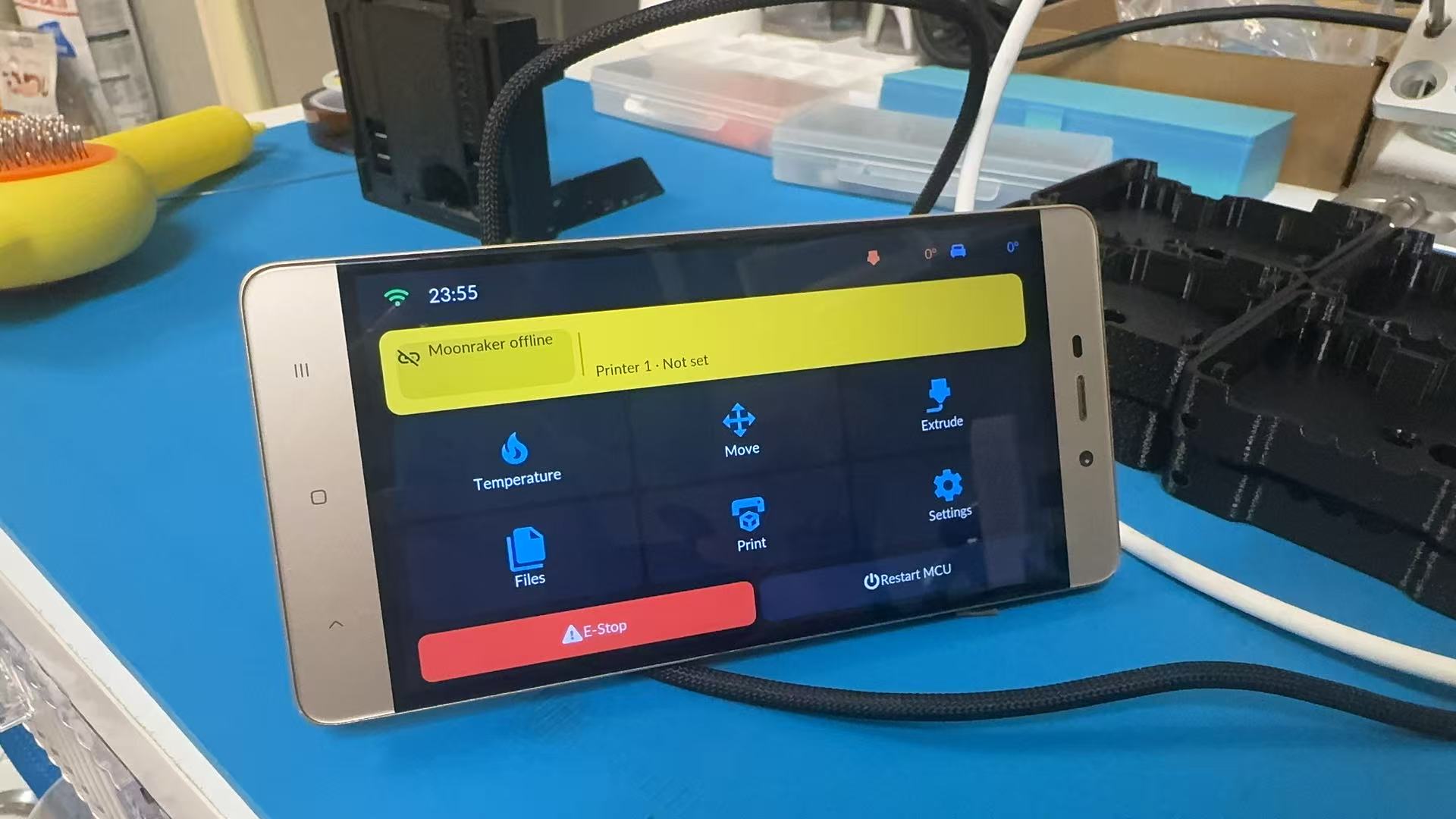
No ESP32 at all — run the same UI directly on the printer's Linux host (shown: a retired Redmi 4 phone, aarch64 Ubuntu 24.04, weston kiosk backend). A phone/tablet running a Linux chroot/proot works too.
The desktop build targets Debian/Ubuntu-family Linux hosts (glibc ≥ 2.35, x86_64 and arm64) as a lightweight KlipperScreen alternative — prebuilt binaries that statically link SDL2/cJSON, no compilation on the host.
One-line install
curl -fsSL https://raw.githubusercontent.com/umeiko/KlipperScreen-esp/main/scripts/linux/install.sh | bash
The installer detects your architecture, downloads the matching prebuilt package from the latest release, then asks how you want it installed:
- Dedicated display service (default) — a
KlipperScreen-esp.servicesystemd unit starts the UI fullscreen on boot through a Wayland (weston kiosk shell) or X11 (bare xinit) backend of your choice; the required packages (westonorxinit) are installed automatically. IfKlipperScreen.serviceis detected, the installer offers to disable it so the two don't fight over the screen - Desktop app — just the binary plus a launcher shortcut in the applications menu
Files land in ~/.local/share/KlipperScreen-esp/, configuration in ~/.config/KlipperScreen-esp/.
Manual install
Download desktop-linux-x86_64.tar.gz or desktop-linux-arm64.tar.gz from Releases, extract, and run ./install.sh. Non-interactive usage for scripted deployments:
SERVICE=n ./install.sh                  # desktop app only
KR_BACKEND=x11 ./install.sh             # service mode, force X11
KR_BACKEND=wayland KR_START=0 ./install.sh
Uninstall with the bundled ./uninstall.sh.
Notes
- At 720p and above the UI switches to the large-font/icon tier automatically, and the boot animation is skipped on high-resolution Linux hosts for a faster start.
- Touch input works through the kernel's evdev/libinput stack — both weston and xinit backends forward it transparently.
- On Klipper hosts (
~/printer_datapresent), config lives in~/printer_data/config/KlipperScreen-esp/so fluidd/mainsail can view and edit it directly, and service logs land in~/printer_data/logs/KlipperScreen-esp.log(downloadable from the web UI). Every app-written config also refreshes a.bakcheckpoint — if a hand edit breaks the main file, the last known-good copy is used instead of crashing. On first boot, printer slot 1 is pre-filled with the local Moonraker (127.0.0.1, named after the login user). - Building from source instead: see Building from source.
Weston session recovery (since 0.7.7)
The Wayland launcher supervises both Weston and the app. If either exits, it stops the other and systemd restarts the complete display session after 2 seconds. A 5-second socket-readiness timeout prevents starting the app without a compositor. Cleanup sends TERM, then KILL after at most 5 seconds; the service stop timeout is 10 seconds. A private klipperscreen-esp socket leaves other sessions' wayland-0 untouched.
The installer always installs a backlight udev rule; each service start also restores video group write access to /sys/class/backlight/*/brightness. Re-run the installer once on old installations to update the systemd unit and permission rules. In-app updates replace the binary and launcher but do not modify privileged system units.
On a Redmi 4, Weston aborted in weston_output_finish_frame after a backwards frame timestamp, while the app stayed alive, leaving a black screen with its backlight and SSH still working. This recovery addresses the aftermath, not the underlying non-mainline kernel/DRM timestamp bug. It does not disable the GPU, change rotation/scaling or raise the frame rate. A display/kernel hang with both processes still alive is not covered by process-exit supervision.
Preserve evidence before rebooting the host:
systemctl status KlipperScreen-esp --no-pager
pgrep -a weston
tail -100 ~/printer_data/logs/KlipperScreen-esp.log
To recover just the display session, run sudo systemctl restart KlipperScreen-esp; Moonraker, Klipper and Linux are not restarted.